How to Free Up Space on Your Phone: Understand What’s Really Eating Your Storage
7 min read How to Free Up Space on Your Phone February 03, 2026 17:38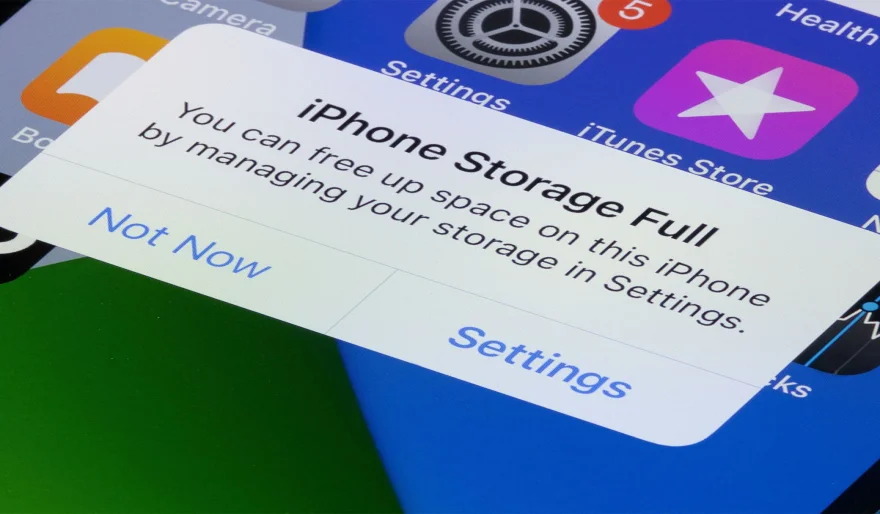
Whether you’re using Android or iPhone, running out of storage is one of the most frustrating phone problems. You delete a few photos, uninstall an app, and somehow the “Storage Full” warning comes back days later.
The issue usually isn’t that you have too much data — it’s that you don’t understand what kind of data is piling up.
Instead of randomly clearing cache, let’s break down your phone’s storage the smart way and clean it once and for all.
⸻
Step 1: The Storage Breakdown – What’s Really Using Space?
Go to Settings → Storage and take a closer look. Don’t stop at the colorful chart — tap into each category.
Apps: The Silent Storage Killers
This is almost always the biggest space hog.
When you open the Apps section, sort apps by size. You’ll often discover:
• Messaging apps storing gigabytes of old videos
• Games keeping large data files even when you barely play
• Social media apps hoarding cached media in the background
An app you rarely use taking 5–8 GB is a clear sign it’s time to clean or uninstall.
⸻
Images & Videos: The Easy Wins
These are your personal files and usually the easiest to manage.
• Delete duplicates and blurry photos
• Move important media to the cloud
• Remove old screen recordings you no longer need
⸻
System: Leave This Alone
System storage belongs to your phone’s operating system.
You can’t clean it manually — and you shouldn’t try. This is not what’s filling your phone.
⸻
Other / Miscellaneous: The Mystery Category
This section usually includes:
• App cache
• Temporary files
• Leftover data from uninstalled apps
We’ll deal with this safely in the next step.
⸻
Step 2: Smart Cleaning – Target the Right Files
Messaging Apps (WhatsApp, Telegram)
Clearing cache from settings isn’t enough.
WhatsApp example:
Settings → Storage and Data → Manage Storage
Here you can:
• See chats ranked by storage size
• Delete massive video files without losing messages
• Clean group chats that silently collect media
This single step can free several gigabytes instantly.
⸻
Streaming Apps (Spotify, Netflix, YouTube)
Offline downloads quietly eat storage.
Go to each app’s settings and check:
• Downloads
• Storage usage
Delete playlists, shows, or movies you haven’t watched or listened to in months.
⸻
Cleaning the “Other” Files Safely
Use your phone’s built-in cleaner:
• Android: Files by Google
• iPhone: Storage recommendations in Settings
Avoid third-party “booster” apps — most of them do nothing or make things worse.
⸻
Step 3: Prevention Habits – Stop Storage Problems Before They Start
Disable Auto-Downloads
Auto-downloaded videos are the biggest long-term storage drain.
In messaging and social apps:
• Set media auto-download to Wi-Fi only
• Disable video auto-downloads completely
This habit alone can save gigabytes every year.
⸻
Use Cloud Storage the Smart Way
Google Photos and iCloud work best with the “Free Up Space” option.
• Your files stay accessible
• Local copies are removed safely
• Your phone stays light and fast
The cloud should support your storage — not replace common sense.
⸻
Final Thought
Freeing up space isn’t about panic-deleting everything. It’s about understanding what’s filling your phone and cleaning it intelligently.
Do this storage audit once every few months, and you’ll likely never see that annoying “Storage Full” message again.
👉 For more practical phone tips and app guides, explore our How To section.
User Comments (0)
Popular Apps










Editor's Choice